Parental Controls
Great option for customers who want to lock certain channels or categories for the younger kids in the family.
How to enable Parental Control?
Input the default password: 0000
Enable Parental Control
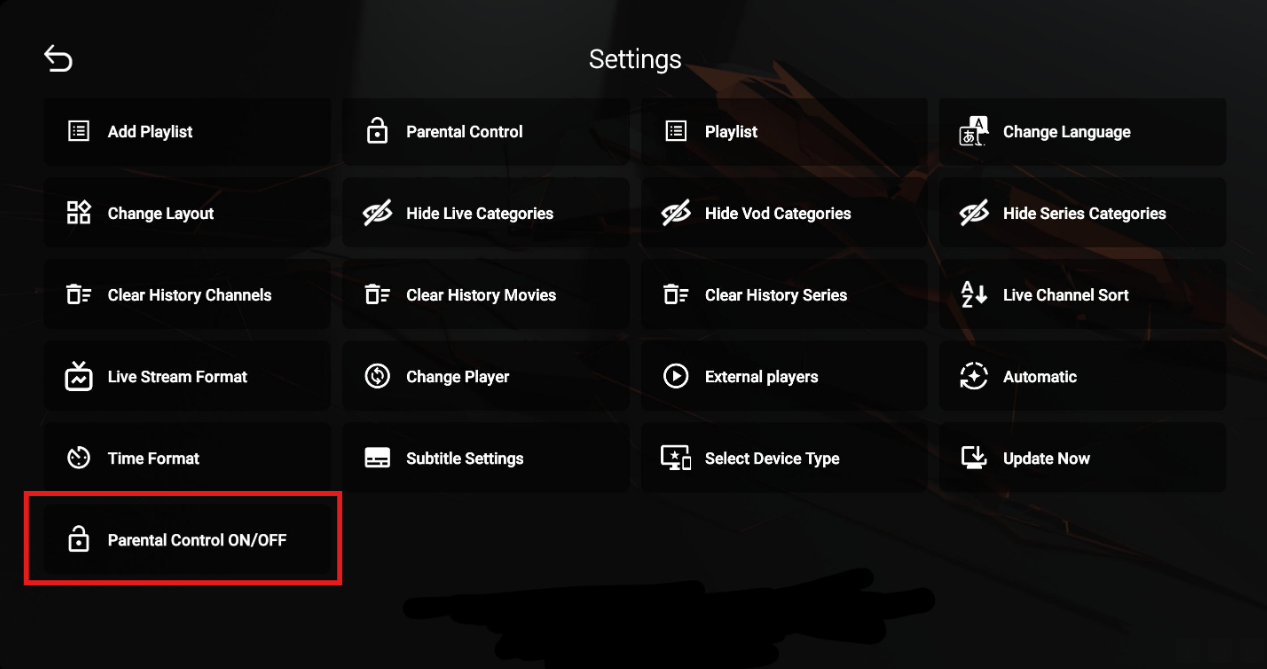
Go to settings in the app and click on Parental Control ON/OFF located at the bottom of the page to enable and disable.
Simply go to the channel you would like to lock and select the lock symbol located on the top.

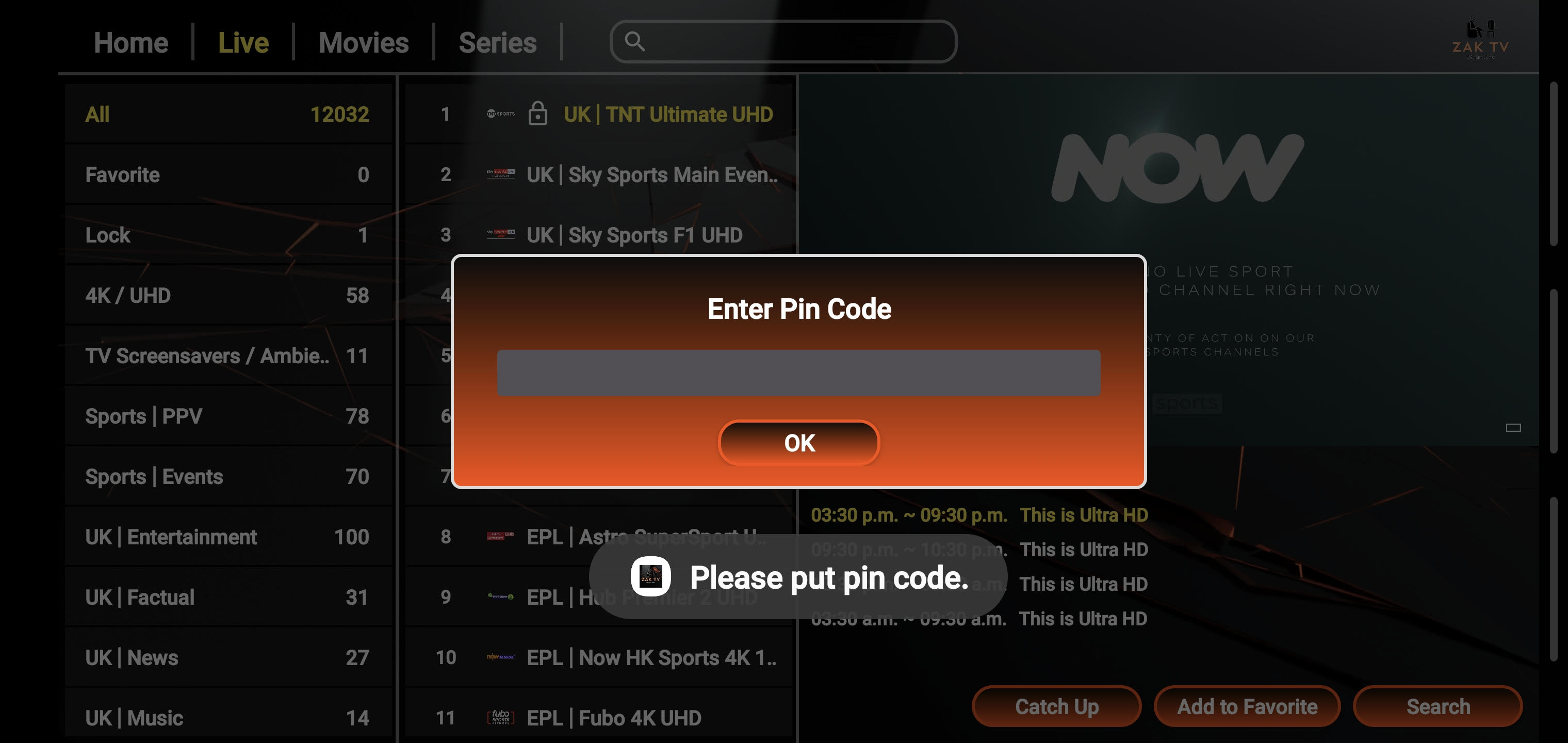
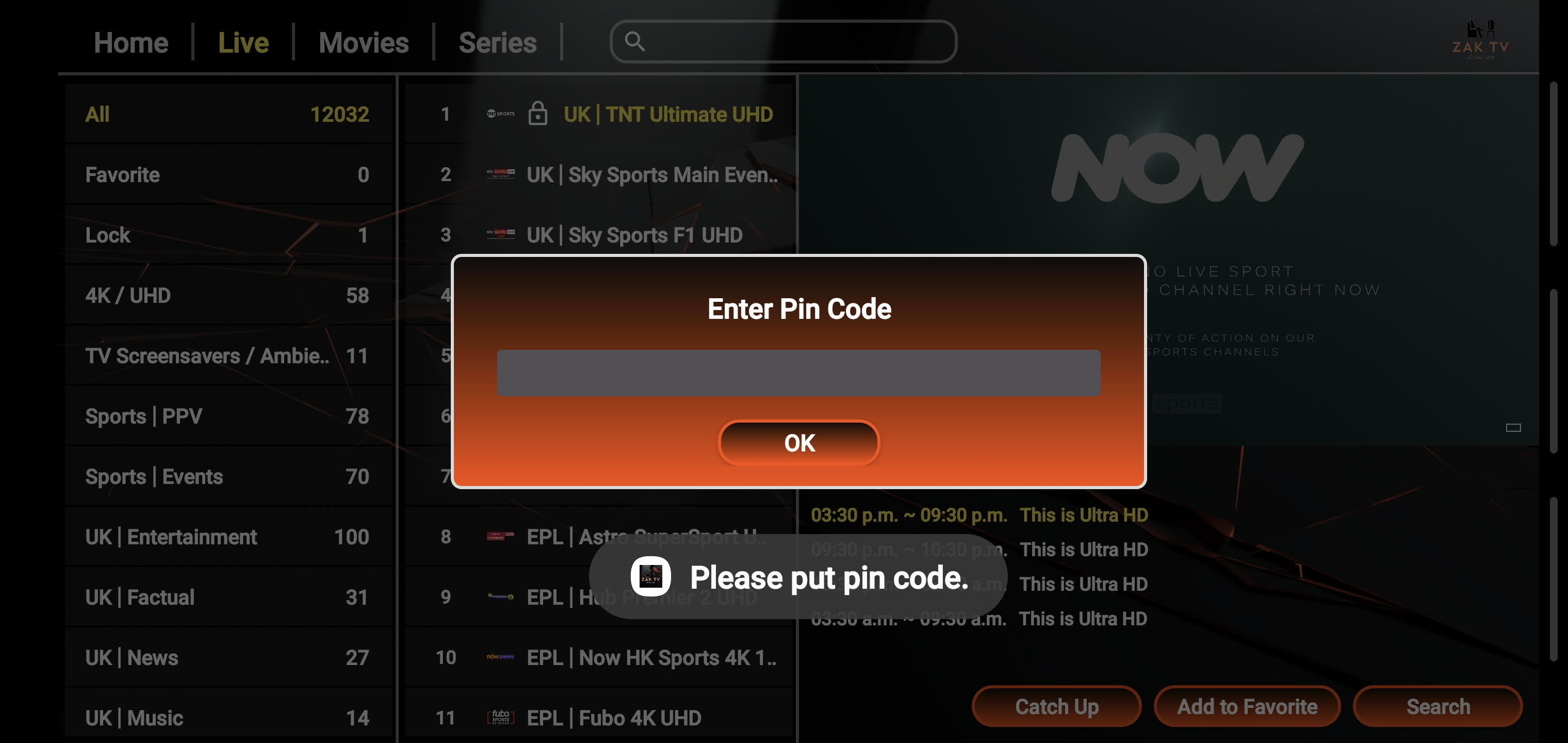
To check if the channel has been locked, simply go to any other channel and then try to view the channel you have locked.
If done correctly and successfully, you will be displayed this message.
Disable Parental Control
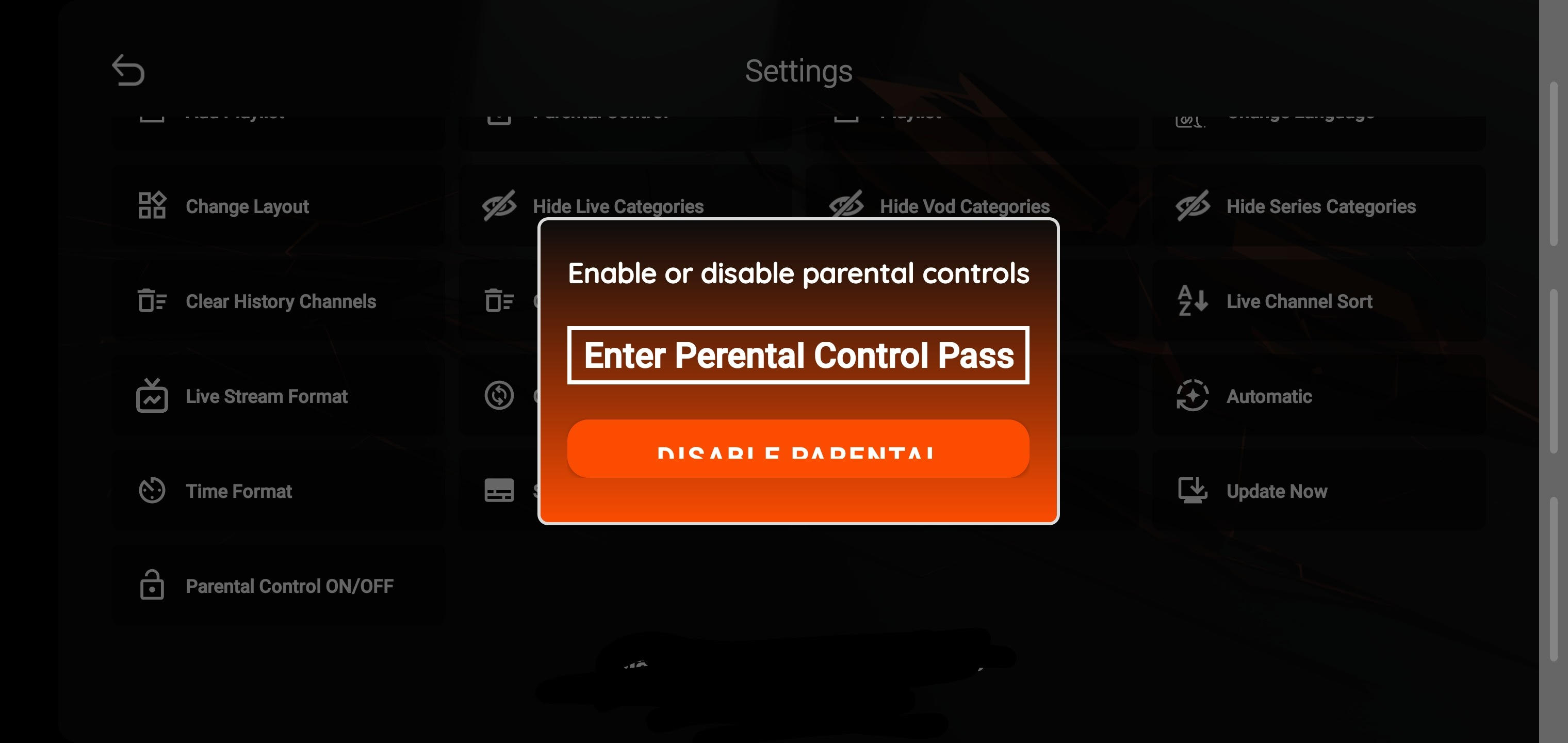
To disable parental control, simply input the parental passcode to view the app and select the lock symbol as shown in the previous message. Input the passcode one more time.
If the channel has been removed from parental lock successfully, you will be prompted with the message shown below.

Changing parental control password
The default password for parental control is 0000.
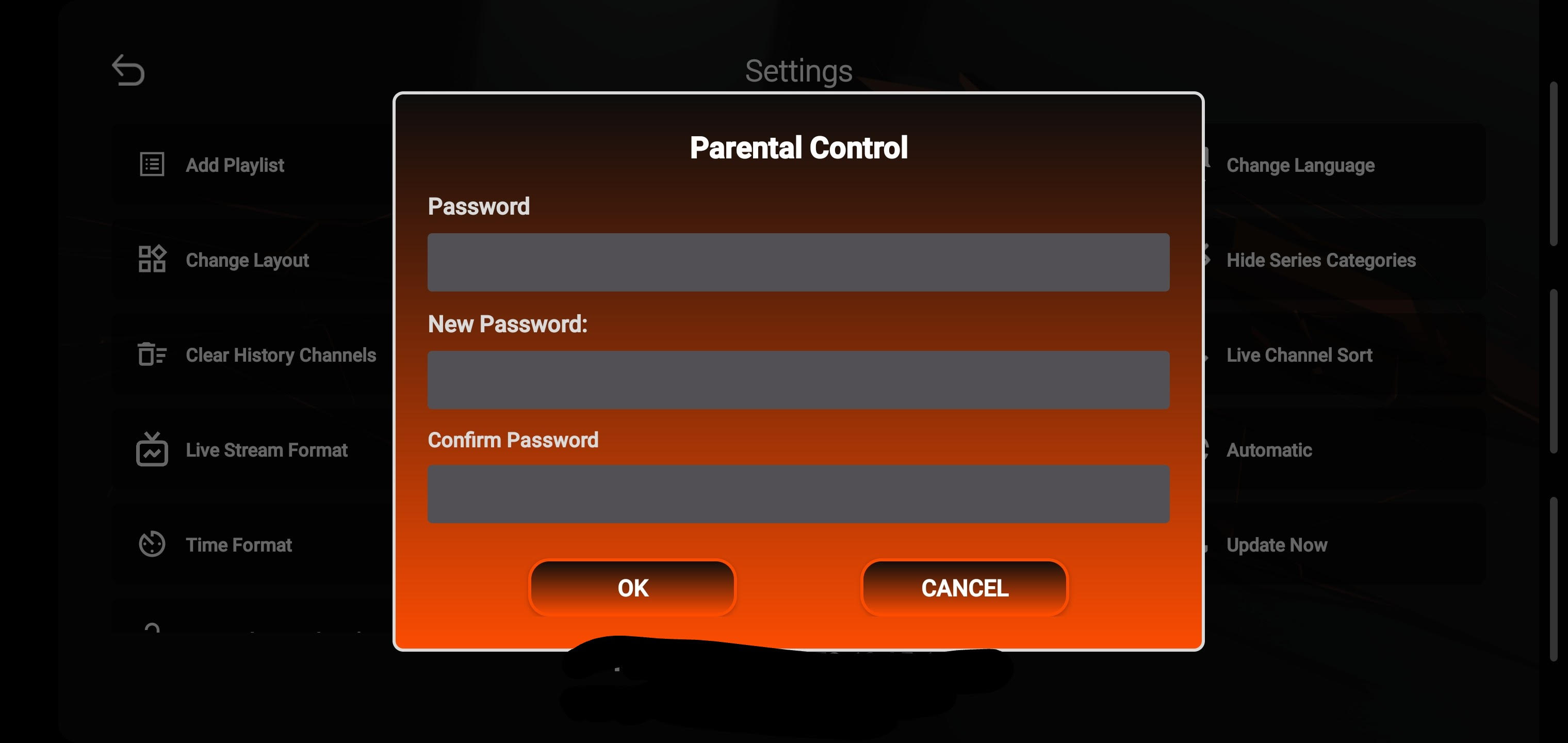
To change this, please go into the settings of the app and select Parental control.
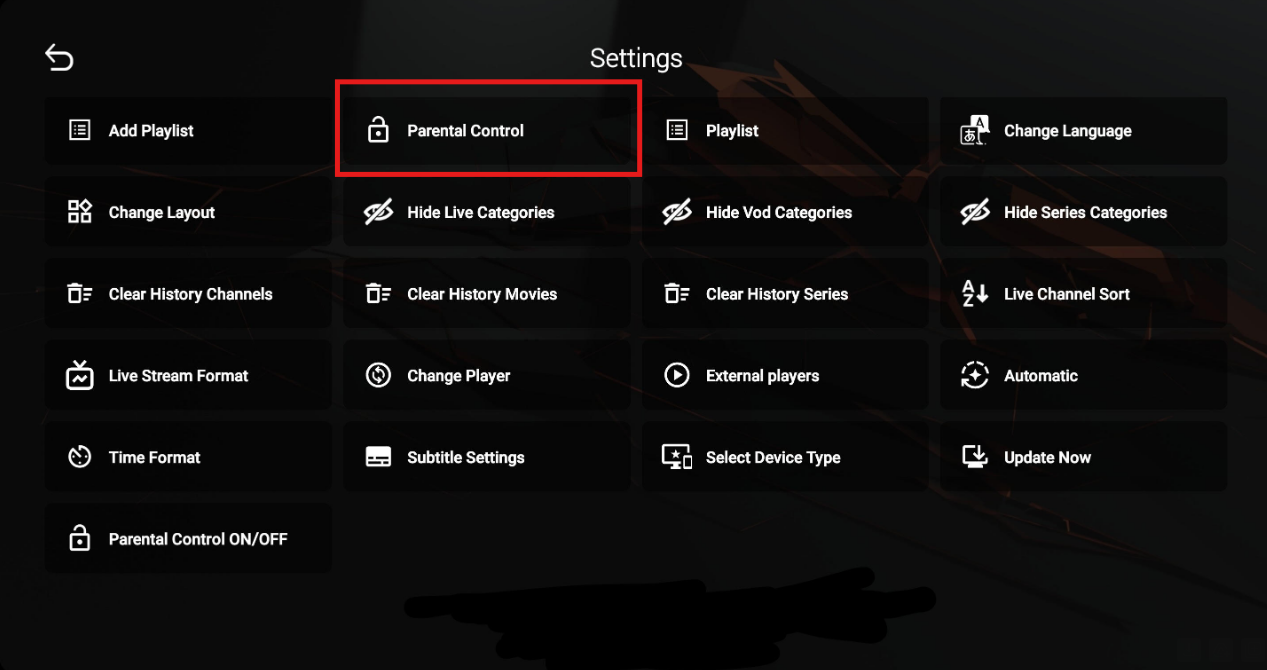
Input the default password 0000 into "Password" and change and confirm the new password.